Share a Household Computer Without Sharing Every Account
Set up separate profiles and shared folders so household members can use the same computer without mixing private work.

Give regular users their own operating-system accounts. Share selected files through a designated folder and test which browser data, downloads and notifications are visible from another account.
List the people and jobs the computer serves
A shared computer can be an excellent household tool. It can print forms, help a student reach coursework and hold a large enough screen for a family project. Problems appear when a machine remembers the wrong person's habits. An email opens under someone else's account, a download lands where everyone can see it or a browser fills a checkout form with information from a different user. Most of these problems can be fixed by defining who uses the computer and which resources they need to share.
List regular users and occasional visitors. Give each regular user a name the household can recognize. Mark the work that needs joint access, such as an album export, printer instructions or a set of homework worksheets. Keep the list small. A computer does not have to share every directory to support a household. People can collaborate on a chosen folder while keeping the rest of their account distinct.
Think about who maintains the computer. Updates, backup, repairs and account recovery need an owner. That role may require administrator access. A regular account used for reading mail and browsing usually needs fewer privileges. Ask the platform how it handles administrator rights and household or child profiles. Make device management understandable to the people who trust the machine with their own work.
Give each regular user an operating-system account
Separate system accounts usually provide individual home folders, settings and sessions. Log in as each person and check that the right name, storage and desktop appear. Accounts can offer different roles, which may affect installing applications or changing system-wide settings. Use the least access that serves each person's ordinary work. Keep a supported way for the maintainer to install necessary updates and recover authorized access.
A browser profile can be useful inside one person's system account. It keeps several browsing identities easier to manage, for example a personal account and an approved work profile. It generally should not stand in for system account separation when several people use the same desktop. Anyone with access to that system session may be able to open another visible browser profile or see shared downloads. Use clear browser names in the separate account rather than using the browser as the household's only boundary.
Separate accounts are designed to make ordinary use and access clearer. They do not turn a household administrator into a stranger to the machine's storage. If someone needs stronger confidentiality from the device maintainer, use a trusted personal device or another protection organized for that need. It is easier to choose the right place for sensitive work than to expect an ordinary shared setup to provide every possible boundary.
Check the places browsers remember for you
Review saved sign-ins, payment information and autofill preferences in the actual accounts people use. A browser that remembers addresses can make a household purchase convenient, but one person's profile should not routinely offer another person's details. Sync the browser to an individual's own account if they need it. Make sure the machine has separate accounts before signing in to a browser that will bring over personal history or saved data.
Downloads deserve a specific check. Private browsing can reduce the history a browser leaves behind after a session. It does not automatically move a saved file into private storage or remove it when you close the window. Check the download destination and delete unnecessary temporary copies through the normal file tools when the task is done. If a file was deliberately shared, remove the shared copy only when the other person has finished using it.
Browser sign-out can mean several things. Leaving one website's account may not sign out of other services. Disabling sync may keep some local data present. Check the options for the browser and website before lending the current session to someone. An individual account or a supported guest environment can make a cleaner starting place than a series of hurried steps applied to a working personal session.
Make nearby screens and peripherals part of the plan
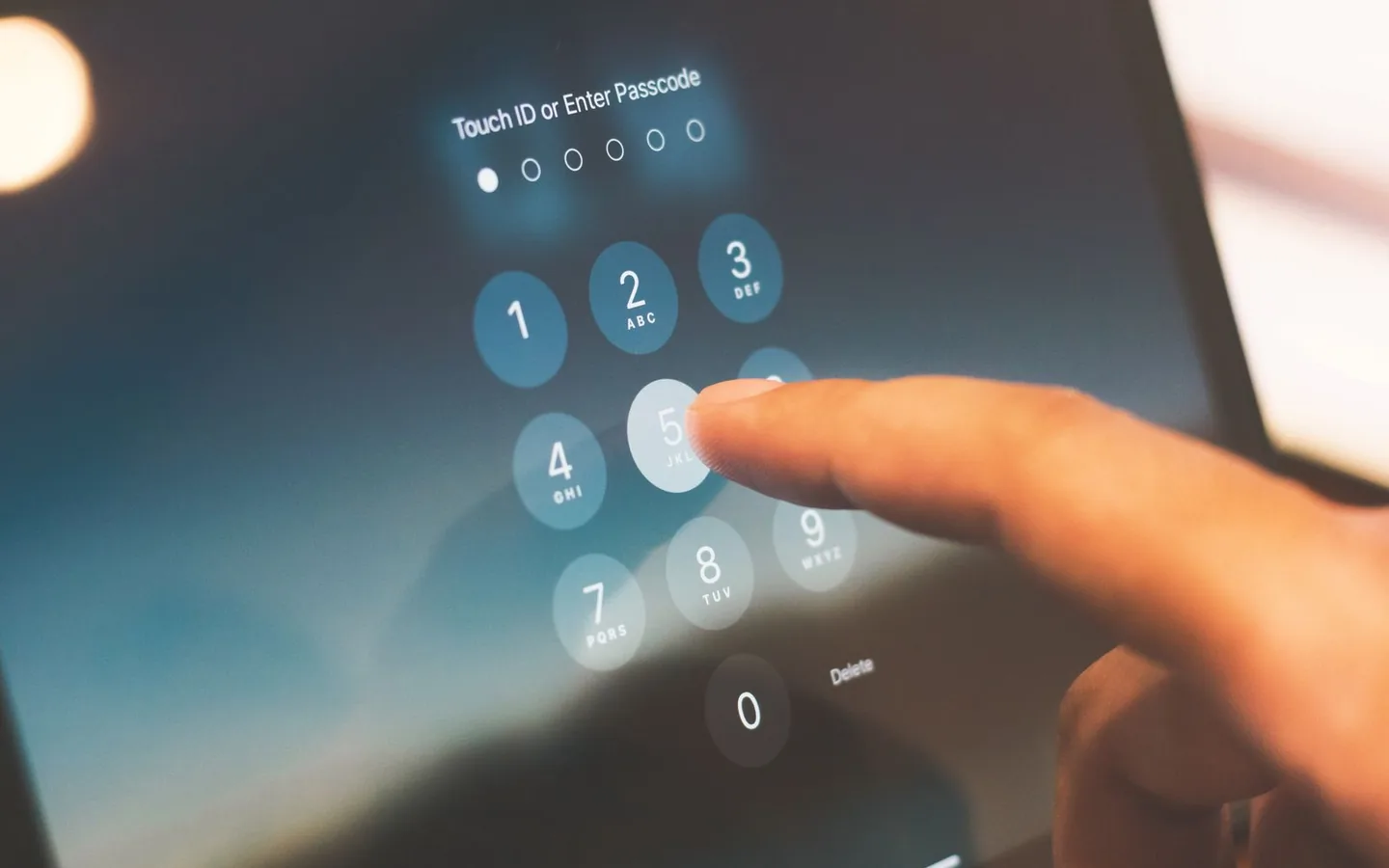
Look at notifications on sign-in screens, shared displays and connected devices. You may want the computer to show that a message arrived without showing the sender or content when nobody has signed in. Find out which account owns any message or calendar feature. Configure preview behavior inside the correct account and test with the device locked. A screen that faces a kitchen table deserves different treatment from one in a private room.
Check printers and scanners. A shared printer can keep a recent job or show a title on its display. A scanner may save to whichever account or folder last configured it. Test a harmless sample and check where the resulting file appears. Delete the sample, then give people a clear default place for scans or drafts. Put sensitive originals away after using office equipment that others can reach.
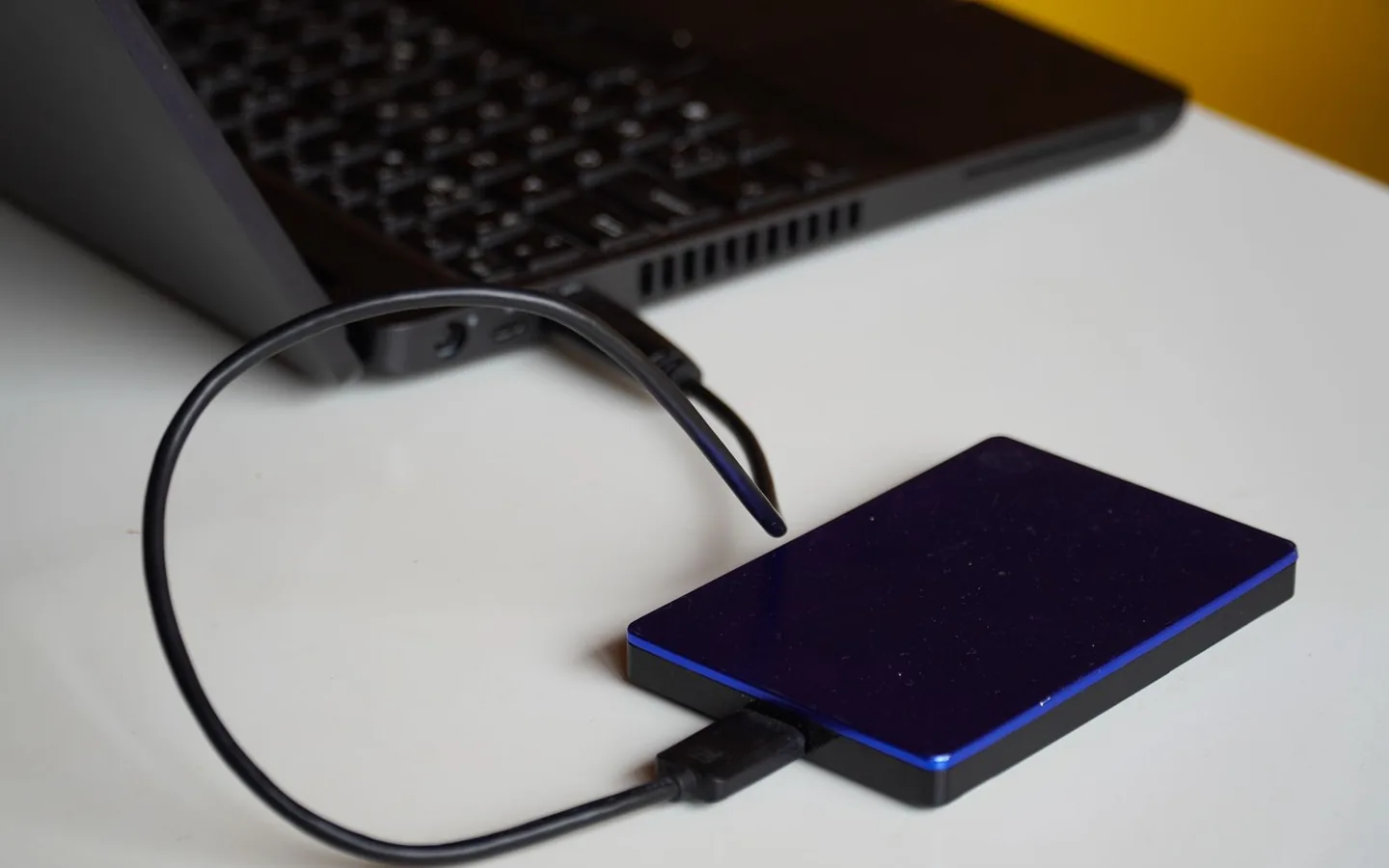
External storage can bypass some habits built into a system account. A file copied to an unprotected portable drive may be visible to whoever connects it. Decide who owns shared drives and what material belongs on them. A printed list of which drive is for household use can prevent someone from treating a temporary backup disk as a convenient place for collaboration.
Consider who can see recently opened files in tools that serve the whole machine. A print queue may still show a document title after the file stops being visible from a browser. Turn an ordinary print job into a test with an invented title and see where the name appears. You can also handle the occasional sensitive task on an individual device or use a different approved printer. This is a more precise change than requiring every shared print or scan to follow a special process. Apply it to the kinds of files that really warrant the additional care.
Set a routine for leaving the computer available
Lock the screen when stepping away. Sign out or use the supported account-switch method at the end of a session. Find out whether a switched-away account keeps applications or long-running jobs active. A backup or large export may need to finish, and a crowded computer can behave differently with several user sessions open. Agree on what other people should do if an unnamed task is visibly running.
Use a guest option only if the platform offers an appropriate one and you understand its behavior. Some guest environments remove session data afterward, while others retain configured settings or saved files. For a one-time visitor who needs a document printed, accepting the individual file may be simpler. A regular user with ongoing work should get an appropriate account instead of relying on a temporary session to preserve anything.
Before a computer changes hands or is sent away for repair, back up the accounts and follow the platform's documented process for removing them or protecting data. Record which applications and shared material must be restored later. Ask the repair provider what access it needs. A specific test account may be enough in some situations, depending on the problem and the provider's policy.
Check the arrangement from both sides
Ask two authorized household members to try a normal sequence. One saves a private test file and a shared sample. The other opens the shared sample from their own account and checks that the private file is not in a common location. Try the printer or scanner and verify its default destination. Lock the screen and check visible alerts. Use harmless test content so that mistakes do not reveal actual information.
Write down the few decisions people need to remember: whose account to choose, where to put joint files, where scans land and who handles updates. Put these instructions somewhere everyone can read without exposing account recovery information. Make the rules simple enough for the least frequent user, because that person is least likely to remember what the computer did last month.
A successful shared computer supports ordinary trust. People can find their own files, hand over a selected document and leave the machine ready for the next person. The household should be able to tell at a glance whether it is working individually or together.