An External SSD for the Files You Move
Choose usable capacity, a compatible connection and a file format suited to the devices you share.
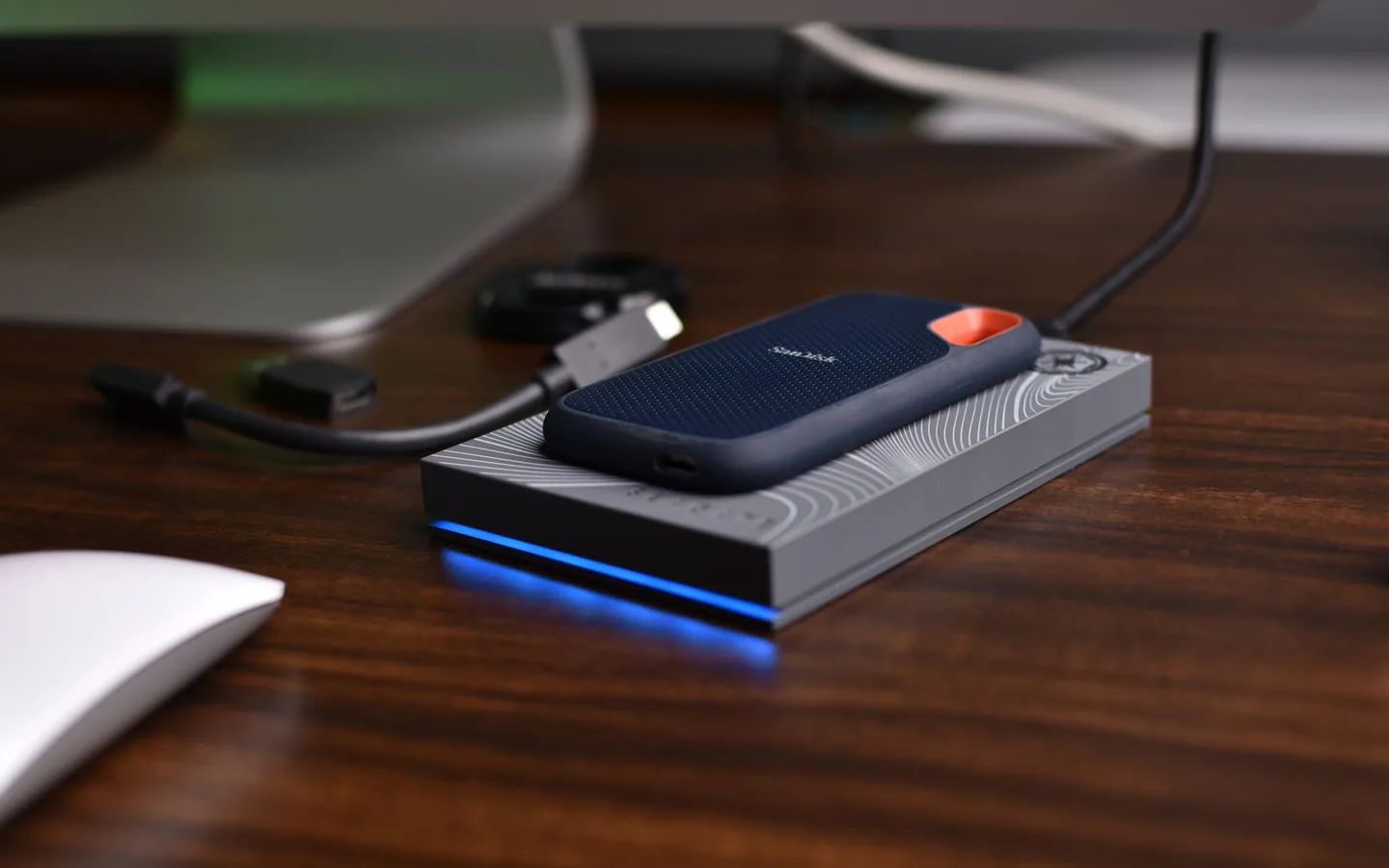
Check the sustained speed and capacity you need, then verify the port and cable. Choose a file system every destination can read and keep another copy of important files.
Name the move before shopping for speed
An external drive can carry a video project to another computer, import pictures away from home or shuttle material between devices that cannot share a network. Those jobs feel similar until you look at the files. A single large recording moves differently from a folder containing thousands of small documents. A drive that is almost always plugged into the same computer has different compatibility needs from one that passes through several people's hands in a week.
Check the size of a few real transfers. A folder that looks modest in a project list may include rendered previews, duplicated source files and temporary material. If you normally reuse the drive before a job is over, allow room for what will still be on it when the next set arrives. Cloud capacity or a computer's advertised storage says little about how much data you actually need to move at one time.
Define whether the drive will be a working location or means of transport. If applications will open and save directly on it, the reliability of its connection and the behavior after sleep are important. If you mainly deliver completed files, wide compatibility can matter more than the fastest transfer. The drive may do both, but each use gives you different things to check during the return window.
Check the three parts of the link
A drive, a port and a cable all place limits on transfer speed. An external SSD with a USB-C socket does not guarantee a particular data rate. Some cables with that same plug are designed mainly for charging and support only modest data transfer. Check the documented capabilities of the drive and computer, and use the supplied data cable or a compatible rated replacement. When a transfer seems slow, connect the drive directly before guessing what inside the drive has failed.
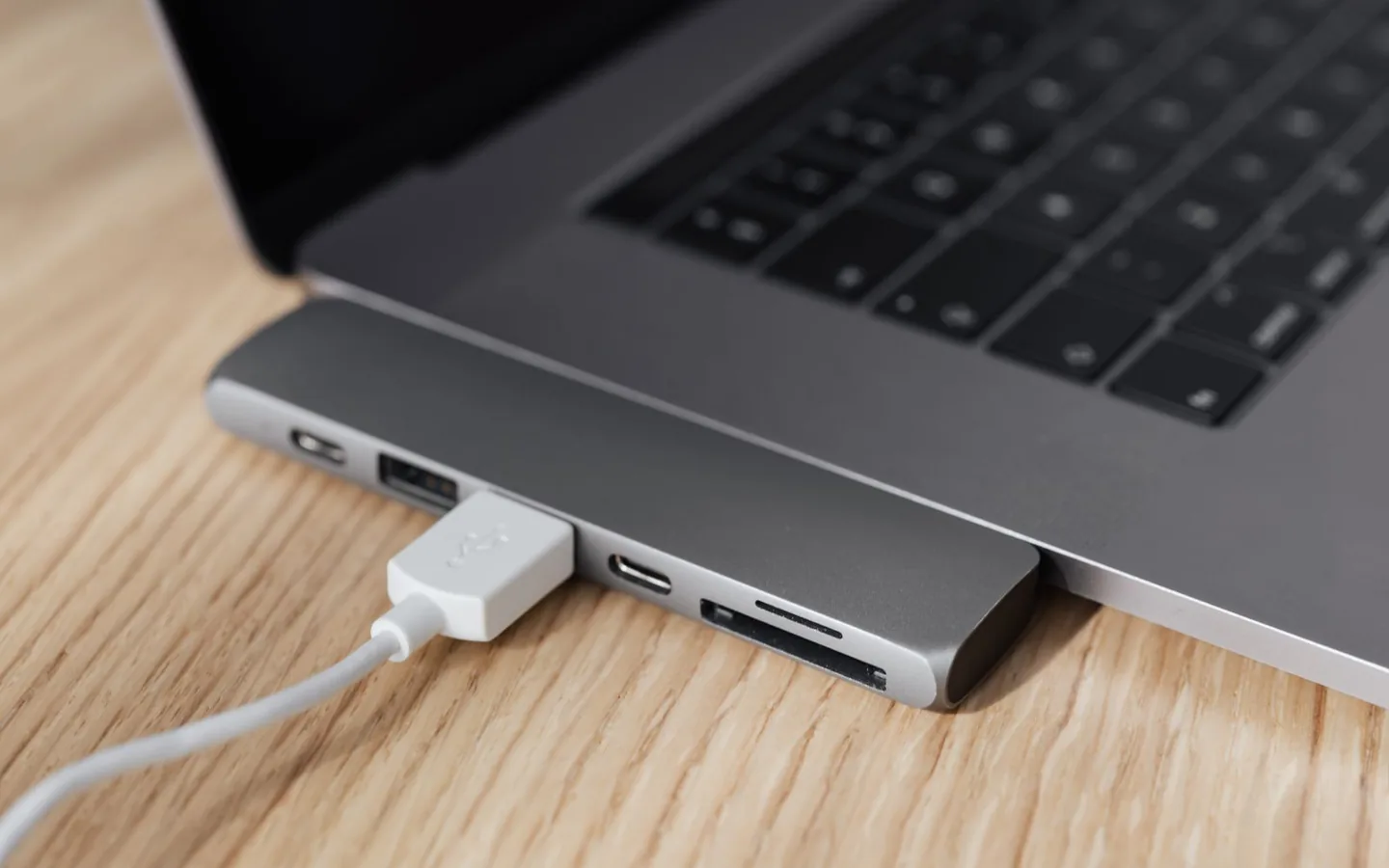
A dock or hub adds another device to that link. It may have ports with different speeds and could share the connection among a display, Ethernet and storage. A slow copy through a keyboard's USB port tells you very little about the drive's own capacity. If a test matters, confirm the connection path and write down which port you tried. Try another port only after completing the first measurement so you know what actually changed.
Peak data rates are measurements of the link or favorable test conditions. The files, operating system and drive also affect a real copy. A performance claim from a large sequential test may be accurate and still fail to predict the time for a directory of tiny files. Choose a repeatable task of your own. A copy of a typical trip's photos or a real source folder can tell you whether a faster product would remove a wait you notice.
Understand how a long copy can differ from a short one
Some drives can write briefly at a higher rate by using a fast portion of their storage, then slow when it fills. Ambient temperature and the drive's design can also affect longer transfers. A quick benchmark can end before either effect is visible. If you regularly write a large amount at once, look for measurements that run longer and describe the test conditions. Compare the sizes tested with your ordinary work.
A repeatable trial is simple. Start with enough free space, copy a folder you can safely duplicate and watch the time until the operating system reports completion. Wait for the drive to be ready to disconnect using the normal eject process. Copy back to an independent folder and open a sample. The goal is to learn a dependable end-to-end time, including any small interruptions between stages.
Watch where the drive will sit. A small case tucked behind a monitor next to warm exhaust may have a less favorable environment than a drive left on the desk with some air around it. A cable hanging from a laptop edge can tug against the connector every time someone shifts in a chair. The practical fix may be a short rated cable and a stable place to rest the drive, even if the packed specification already sounds good.
Decide how every destination will read the disk
Choose a file system by checking the devices that will take the drive. A format native to one operating system may be the best fit for permissions and backup features on that system while working only partially elsewhere. A widely supported format can improve compatibility for exchange. It may give up particular permissions, encryption or recovery features that matter when the drive holds sensitive or active work.
Before reformatting an existing drive, copy anything you want to keep and verify those copies. Formatting is a destructive operation from the perspective of ordinary use. Start with a small safe test on the new format. Write a folder on the first destination, open and change a harmless file on the second, and confirm the result on the first again. Also test a large file if that is one of your real requirements.
Other equipment, such as a television, recorder or camera, may impose more specific limits than a computer. A device may accept USB storage while requiring a particular partition style, file system or power arrangement. Read that device's guide before selecting the drive. If the destination cannot read the drive, avoid its offer to initialize the disk until you have checked what will happen to the files.
Use the outside of the drive to protect the inside
Consider the case, connector position and included cable in the place where the drive will travel. A small unit can disappear inside a deep bag while a larger one can crowd a tight desk. A removable cable is convenient if it is the part that wears out, but only if you can find a replacement with the needed rating. Keep a short cable with the drive rather than relying on whichever charger happened to end up in the bag.
Check the terms of any claimed protection. A rugged shell may protect a case from knocks, while a stated water rating applies only under specified conditions. Keep connectors dry and put the drive where a bottle leak or pressure from another object is less likely. An SSD has no spinning platter, but it still has components and a connection that can fail. Physical convenience and a separate backup work together.
For a drive carrying private material away from home, consider encryption supported by the systems that need access. Record recovery information somewhere secure and separate from the drive. Before making it the only way to reach a project away from the office, test the unlock process on that actual computer. A strong protection choice is useful when you can also recover authorized access under ordinary conditions.
If several people handle the drive, give each one a reliable way to identify it. A simple outside label and a recognizable volume name reduce the chance that someone formats or ejects the wrong disk. Agree on how the drive goes back to the next person, including which files can be removed after delivery. Until both sides confirm receipt and independent backup, treat the travel copy as one part of a larger exchange. This is especially useful in a group that moves different versions of a project between the same two machines.
Treat transfer as a copy until you verify the result
Most transfers should begin by copying rather than moving files. After copying, open a sample of the result and check that the destination has the size or item count you expect. For important transfers where you need more confidence, use a suitable integrity check. Only remove the source after you have verified the destination and confirmed the files are covered by a backup in another place.
Give transfer folders readable names. A date and a short project description can prevent confusion when several folders contain files named by the same camera or export application. If you hand the drive to someone else, include a short description of what is ready to use. Keep unfinished exports separate. That distinction saves time when the receiver cannot ask immediately which folder contains the final package.
Wait for the system to confirm the drive can be ejected before unplugging it. A copy window disappearing is not always proof that every pending write has reached the device. The same care is useful when moving a laptop with the drive attached. A short pause now is preferable to finding an incomplete folder when the original device is already far away.
Decide which drive still suits the next job
Compare the completed transfer with the reason you bought the drive. The winner might be the model you can share with two systems without moving an adapter, or the one that is quick enough on long sessions without using the only high-speed port for hours. A large capacity earns its price when it removes the need to juggle active folders. An unused speed advantage is easier to leave on the table.
Check the storage location for the source copy and backup before making the external drive part of every job. That small routine lets you replace the drive without losing what was on it. A portable SSD is at its best when it makes a piece of work easy to carry and easy to verify on the other side.