Select a USB-C Dock That Does Every Job You Need
Map your displays, power and devices before buying a dock whose connector tells only part of the story.
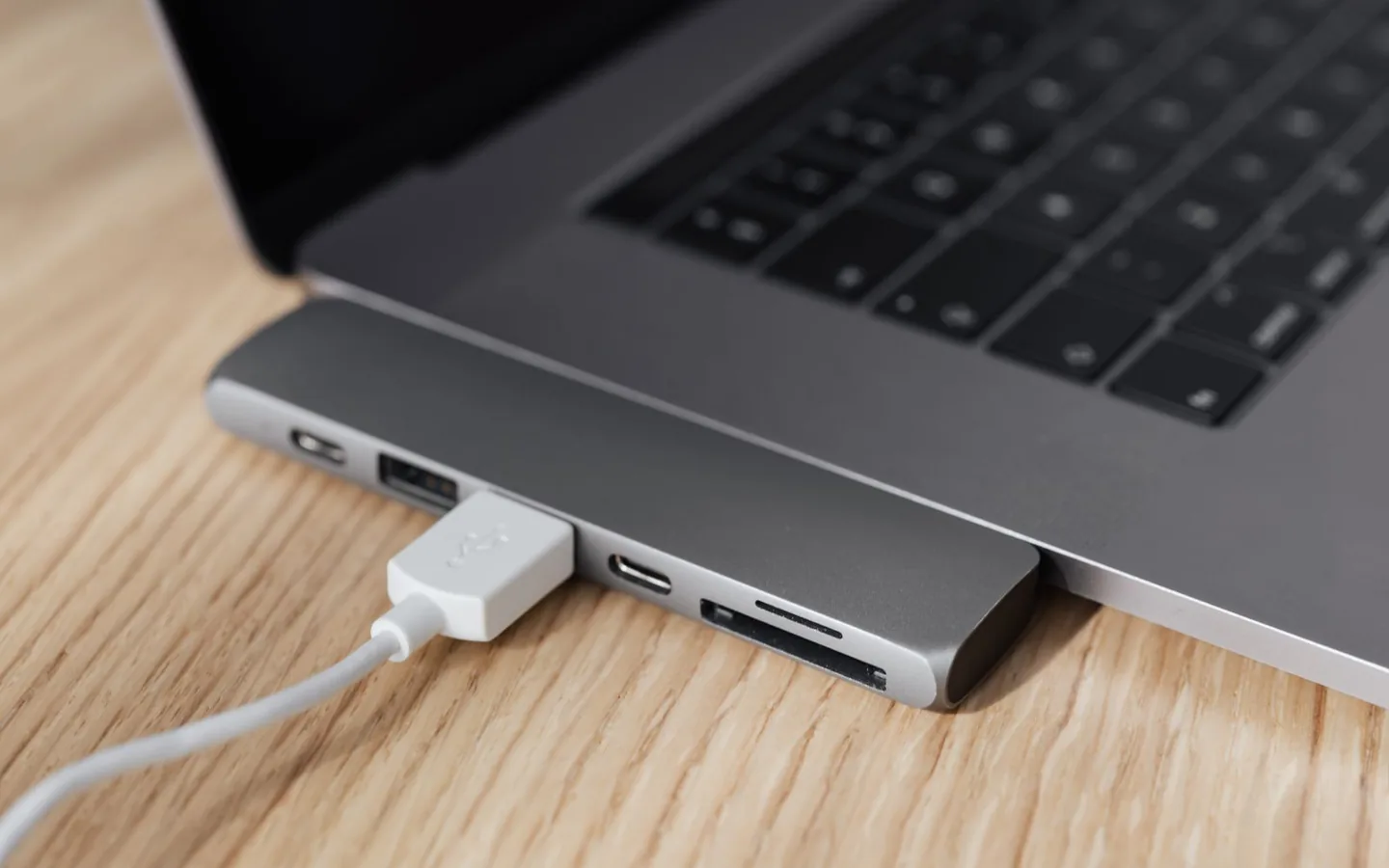
List each display mode, accessory and charging requirement. Confirm the host's capabilities and the dock's connection table, then test the full combined setup.
Draw the desk before reading the box
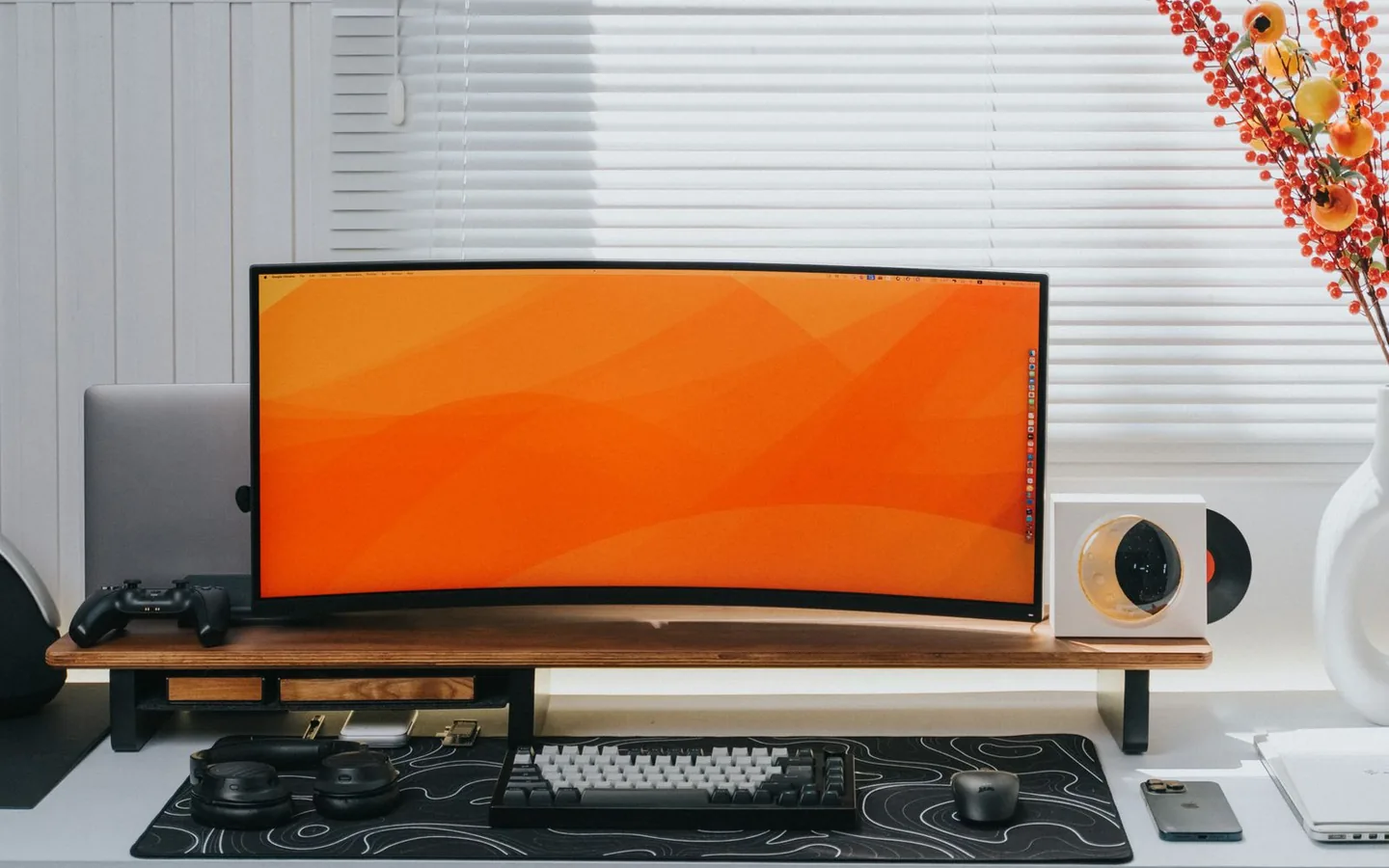
A dock is supposed to make a particular desk simpler. Start by drawing the equipment that will be on it: the computer, display or displays, keyboard, mouse, webcam, storage, network connection and power. Mark how each piece plugs in today. Draw the arrangement you want to use after the purchase. An inexpensive hub might serve a desk mostly occupied by a mouse and keyboard, while a dock for several displays and a drive takes more planning.
Write down exactly what should happen when you arrive. Perhaps you connect one cable and close the laptop, then work on two monitors with a webcam attached. Perhaps you swap one lead between a work and home computer. Determine whether the dock needs to drive the screens, send sound, carry an Ethernet connection and charge at the same time. A list of all possible ports can disguise a limitation on which ones work together.
If you know the setup will change, give the likely addition a place in the drawing. An extra monitor already ordered belongs in the plan. A far-off idea for four displays need not dictate today's purchase. Try to distinguish the devices you will actually connect from the ones you might borrow for a short task. The final dock should improve your repeated routine without pricing in a collection of hypothetical desks.
Verify the computer side of USB-C
USB-C describes the connector shape. A particular port can support different combinations of data, video and power. A manufacturer may give different features to two otherwise identical-looking ports on the same laptop. Read the documentation for the exact computer and port rather than treating the presence of the plug as proof of everything else. A model family can also have several configurations with different capabilities.
Find out whether the desired dock uses conventional video modes from the host, a higher-capacity connection type the host supports, or a driver that sends compressed display data through USB. These designs can all be useful. The last one can add requirements around software installation, permissions, protected video and sleep behavior. Read how the dock's method fits the computer and your employer's device rules if it is a work machine.
The cable from the computer to the dock is part of that path. Keep the supplied cable unless the documentation supports another one with the same necessary ratings. A power cable that happens to fit may not carry the data or video you bought the dock for. If you need to replace it, verify the required length, power capacity and data standard. A cable change is often where an otherwise unchanged setup starts acting like a different one.
Describe the displays by their actual modes
Write each monitor's native resolution and the refresh rate you want to use. Note the input on the monitor and any adapter between it and the dock. The dock's display table should explain which combinations of port and mode it supports with the type of host you have. A headline like two displays can hide a reduction in resolution or refresh when both are connected. Particularly high rates or other video features may have additional requirements.
Check the operating system as well. A dock can expose multiple physical outputs while reaching a mirror arrangement on a particular host. Some laptops support an additional external display only under specific conditions. A familiar screen arrangement from another machine is not a reliable compatibility test. Read both the host and dock instructions about extended mode, the built-in display, and the conditions under which the documented combinations work.
If you mix displays, look for a layout that works at their real sizes. A wide monitor at the center and a portrait display to the side may benefit from different cable lengths. In a shared workspace, a dock on the near edge is easy to reach while increasing the distance to both screens. A small diagram of cable routes can expose a limitation before you buy an adapter whose plug needs more clearance than the space provides.
Check power with your hardest normal job in mind
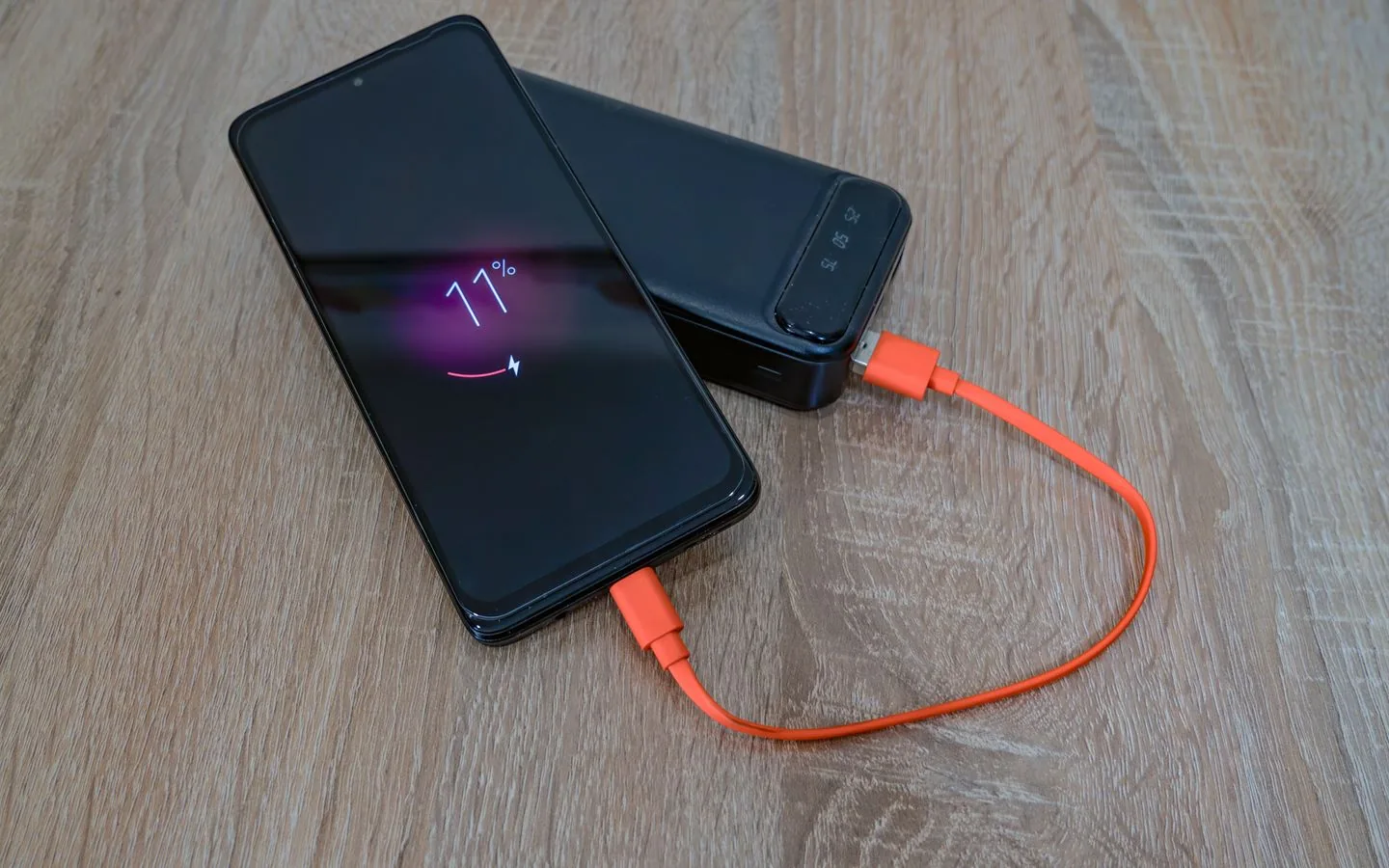
A dock may get power from its own supply, deliver some of that power to the computer and use a portion for its own electronics or accessories. Find the figure for charging the host, not just the number printed on the power adapter. Compare it with the computer's requirements. A dock that charges while you answer mail may behave differently when the laptop runs a game, renders video or powers a bright display and several accessories.
Some docks pass through power from a separate charger. Check whether the charger is included and how much capacity the dock reserves for itself. If you keep the original charger attached as well, consider whether that defeats the single-cable routine or actually fits the desk better. A high-power machine may be perfectly happy with one lead for data and a separate familiar power connection.
List accessories that need meaningful power or regular reconnection. A portable drive, an audio device and a phone used for testing can pose different demands from a mouse. Look at which downstream ports provide charging and whether they do so when the computer sleeps or disconnects. If overnight device charging is an essential part of the purchase, check it during the trial rather than relying on a logo beside a port.
Put demanding devices where the dock can serve them
A dock's ports share some part of the host connection. A fast external drive may perform differently when the dock is also handling two large displays and a backup. Check how the product describes those active combinations. Consider whether the drive can plug directly into another laptop port for an intensive job while the dock handles the everyday setup. Freeing the dock from the heaviest occasional job can make the desk simpler overall.
Test the camera and audio setup during a normal call. A dock can introduce an additional audio output that the operating system chooses by default. A monitor may advertise speakers while the headset you use is still on another connection. Set the usual input and output, disconnect and reconnect, and verify that the choices survive. The dock should put controls within reach rather than asking you to find your microphone every morning.
For Ethernet, try the port on the network you will actually use. An adapter can have supported speeds that differ from those of the router or switch. Company networks may have their own access requirements. Check how the computer and dock behave after sleep and when you return from wireless use. A single successful web page on the first connection does not establish that a long meeting or file copy will stay connected.
Consider whether a charging feature may draw on the same dock power when a computer is disconnected. If you frequently borrow its cable to charge something else, test the return to the ordinary laptop setup directly afterward. A powered USB port can help the desk feel organized when you understand how it behaves as connections change.
Assess the connector you will touch every day
Place the dock where its incoming and outgoing cables can follow easy paths. A cable that has to curve tightly around the side of a shelf puts strain on the connector. A low shelf can be a practical position if you need to change a display input occasionally. A dock almost hidden behind a screen might work brilliantly until you need to reach its power button with all the cables in place.
Keep ventilation openings clear and make sure the device cannot easily fall. A dock can be warm under load, so follow the maker's guidance rather than sandwiching it between other devices. Consider where a removable host cable stores when you take the laptop away. A hook or loose guide can keep it from falling under the desk without keeping the connector under tension.
Do a controlled trial through several ordinary cycles. Let the laptop go to sleep and return in the morning. Connect while running on battery. If you plan to close the lid, try the full closed-lid sequence you normally follow. Attach any drives before and after wake. Problems that appear once in a showroom may be hard to reproduce. Problems that repeat in exactly one sequence are easier to describe to support.
Keep a record that helps when the desk changes
Save the useful port assignments once everything works. Note which cable carries the host connection, which display uses each output and whether a driver is involved. Record firmware or software versions if they matter and use the maker's process for any updates. A photo of the rear connections can answer an immediate question more quickly than a collection of packaging.
If something fails, simplify the setup before returning the dock. Test one monitor directly with a known suitable cable, then with the dock. Add devices back one at a time. Compare with the documented capabilities rather than chasing a mode that was never supported. Keep notes with the purchase information. They will help you distinguish an equipment problem from a bad connection or an expectation the hardware could not meet.
The dock should earn its space by making the first five minutes at the desk easier. If you can plug in, see your documents, charge and begin without thinking about adapters, it is doing the job. Its features matter because they produce that repeatable result. Choosing from the desk outward gives you a way to verify each one.