How to Choose an External Monitor for Your Desk
Compare monitor size, pixel density, desk depth and USB-C connections using the work you do each day.
Choose a screen you can read at a comfortable distance and a resolution your computer can drive. Verify the stand and cable specifications before comparing extras.
Look at where the monitor will sit
An external monitor should make the work in front of you easier to see. Shopping tends to start with diagonal size, but the dimensions of the desk and the position of your chair give you a better starting point. A large screen on a shallow desk can occupy too much of your view while an apparently modest screen with a good stand might put everything in easy reach. Measure the depth of the usable desk, including space taken up by a shelf, keyboard or desk lamp.
Sketch the monitor's outline on a piece of cardboard if the decision is close. Put the sketch where the screen would go, sit down with the chair at its everyday height and see where your eyes want to settle. This exercise makes it obvious when a large stand would force the screen too close or when a deep corner would swallow a display. Check how much clearance you have behind the desk for cables that come straight out of the back.
Look at windows and room lights while you are there. A monitor across from a window may have to push through glare all afternoon. One that sits perpendicular to the same window can feel brighter without adding brightness. Surface finish makes a difference, but placing the screen well is easier and usually cheaper than trying to overpower a reflected window. Take note of which problems a physical change can solve before reading another specification sheet.
Compare size with resolution and scaling
Resolution counts pixels across and down. Pixel density describes how tightly those pixels fit together. Moving from a small to a large screen at the same resolution makes the pixels larger, which may be easy to see if you sit close. Increasing both size and resolution can make text smoother while allowing more information to fit. Whether that extra space is usable depends on the text size you choose.
System scaling lets you display interface elements at a comfortable size on a high-density screen. Imagine a spreadsheet viewed on two screens of the same size. With similar-looking text sizes, one screen might reveal more detail along letter edges without showing any extra rows. That is still a real benefit if you read for hours. An application that handles scaling poorly can look soft or place menu controls in awkward positions. If an older application is essential to your work, test it rather than counting pixels on paper.
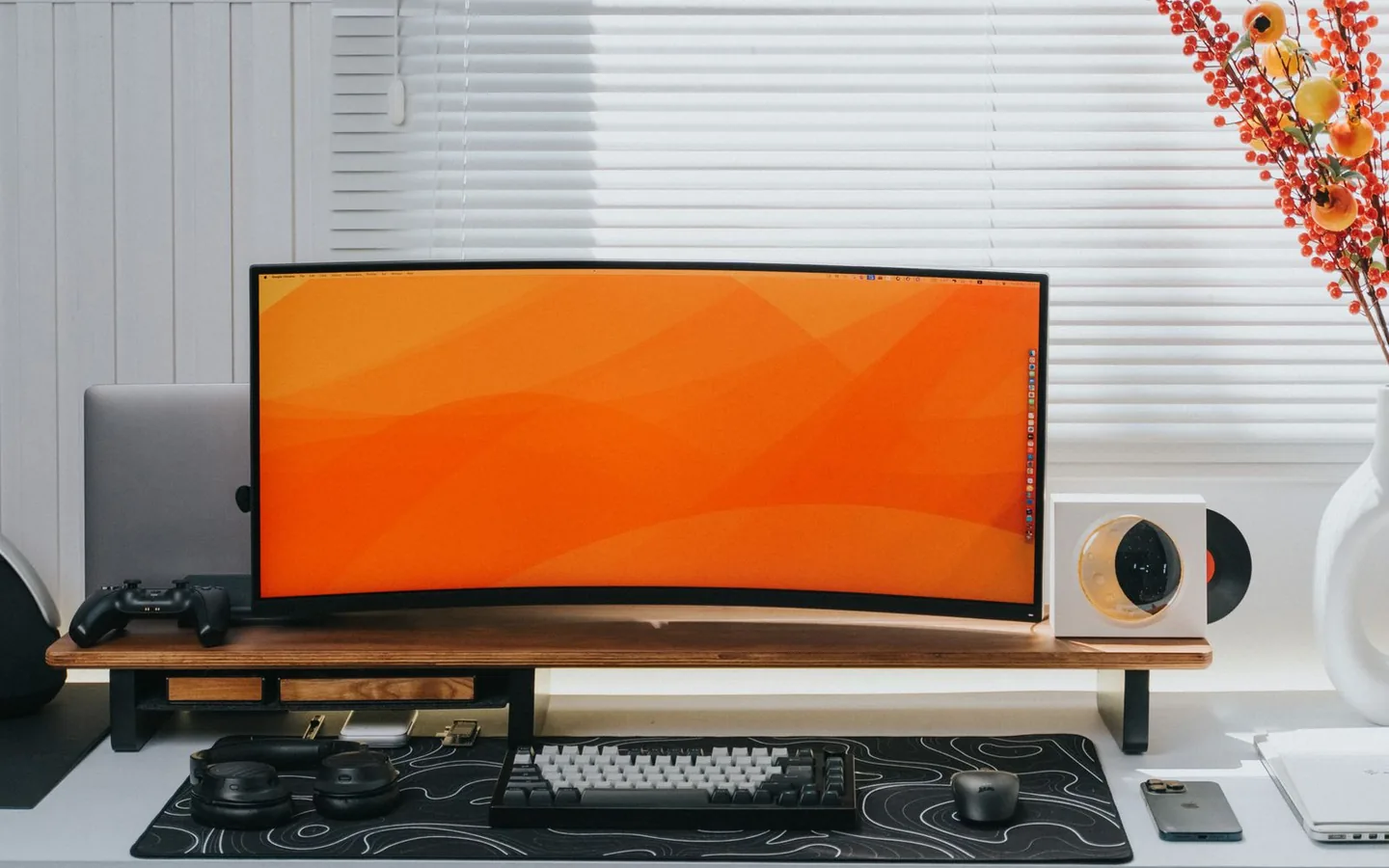
Think through the window arrangement you reach for repeatedly. One wide screen can hold a text editor and notes without a seam in the middle, while two smaller screens let one project sit off to the side at an angle. A portrait monitor suits source documents or lines of code for some people. That layout also puts its upper corners much higher, which matters if you use an adjustable arm under a shelf.
Check the parts that touch your routine
For ordinary office work, good adjustment is often worth more than another headline specification. A stand with height and tilt adjustment gives you room to change chair posture or share the desk. A stand that rotates can be handy for a portrait setup but may require raising the screen before turning it. If you plan to buy an arm, confirm the monitor has the matching mounting pattern. Compare the monitor's weight without its stand to the arm's supported range.
Check the base footprint separately from the depth of the screen. Some feet extend sideways and others take up the middle of the desk. If you push your keyboard back to make room for a notebook, a long stand foot will get in the way even when the screen is miles above it. An arm clears the desk but the clamp needs a flat, accessible edge and enough structural support for the particular desk. Look under the desk before ordering.
Take a look at the screen's controls. A button you can feel under an edge is reasonably convenient if you switch inputs often. A buried menu may be perfectly fine if you set it up once. Similarly, check the power indicator and minimum brightness if the screen shares a bedroom or another space that gets dark. These details can make more difference than a feature you only enable the first weekend.
Verify what crosses each cable
HDMI, DisplayPort and USB-C are connector families. Two devices with compatible-looking sockets do not automatically support the same resolution, refresh rate and data features. Consult the mode table for the monitor input and the specifications for the particular output on your computer. A dock or adapter sits between those two devices and has limits of its own. When troubleshooting a mode, try a suitable direct cable first to remove that variable.
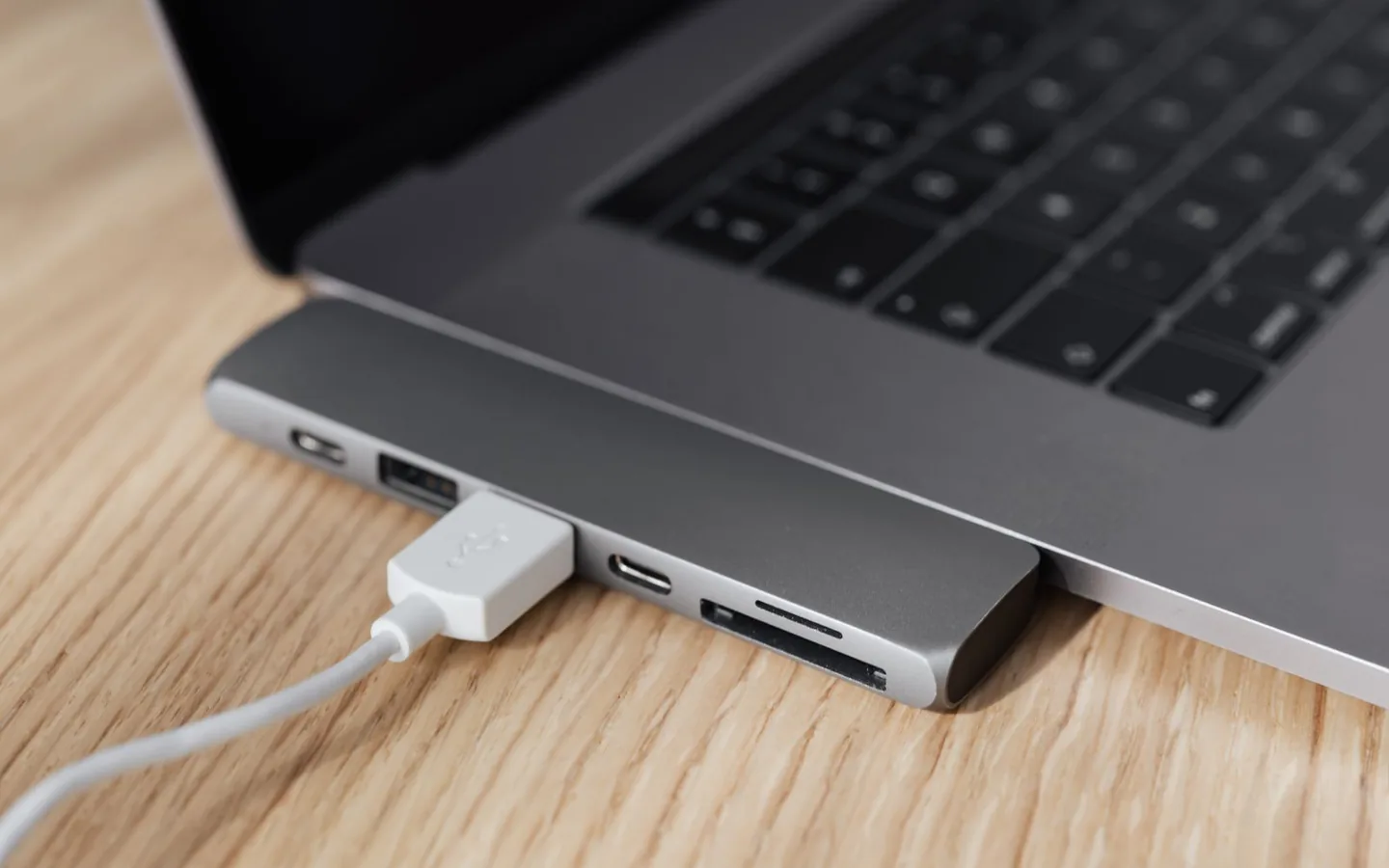
A monitor that charges a laptop and connects peripherals over one USB-C cable can make a shared desk much easier to use. Confirm the display can provide the amount of power the laptop needs for your workload. Verify separately that the laptop supports video output on that port. Some displays let you choose between more bandwidth for video and faster speeds for their USB hub. That menu matters if you intend to connect both a fast storage drive and a high-resolution display through the same cable.
If you plan to switch between a work laptop and home desktop, list what has to move with the image. Sound, webcam, keyboard and mouse could each have a separate path. Some monitors offer a built-in keyboard and mouse switch, but it only helps if its upstream connections match the computers you want to connect. Downloading the connection diagram before buying can save a collection of unnecessary adapters.
Pick performance for motion and color you actually use
Refresh rate describes how often the display can update. More frequent updates can make scrolling feel smoother, and game players may notice the difference in rapid movement. The computer has to render the frames and the connection has to carry the chosen mode. For mostly stationary text, a higher refresh rate generally has less practical value than a readable size and a display you can position well.
Color requirements are also tied to the work. Designing material for a known delivery color space is a different task from making a family photo look pleasant. For color-sensitive work, look for independent measurements of the modes you would actually use and consider how you would calibrate and verify the display. A description of a wide gamut cannot establish that a sample is accurate, uniform across the panel or suitable for the lighting where you work.
Ignore picture modes that make it difficult to judge a normal document. A store demonstration may emphasize saturated images and a bright backlight. In a dim room, bright white windows at those settings can be uncomfortable. At home, start in a neutral mode at a brightness that suits the room, then look at a selection of the content you care about. Keep the exciting settings available for the jobs where they help.
If you care about occasional movies or games, check the screen at the angles people will actually use. A display can look balanced from the office chair and change noticeably when viewed from a sofa at one side. In a desk you share, each person should try a document at their preferred height. A display marketed as ideal for one particular activity can be a good general choice, provided its picture holds up across the other places and tasks in your day.
Evaluate the screen during normal use
Once the monitor arrives, check for damage and keep the packaging until it has worked through a few normal days. Verify the selected resolution and refresh rate in the operating system. Try your usual display scaling before putting a pile of windows in place. If things look soft, first check whether the system is driving the display at its native resolution and whether the affected applications handle scaling.
Read a document across the screen. Scroll a web page. Look at pale gray, white and dark backgrounds in the lighting you normally use. A stuck pixel, an uneven patch or a reflection may matter more in one setting than another. Consider the seller's return policy and dead-pixel terms before deciding to keep a screen whose faults you notice regularly. A defect that distracts you now remains visible after the return window ends.
Run your ordinary connection routine several times. Close the laptop lid if that is how you work, reconnect after lunch, and put the computer to sleep overnight. Check that the display and peripherals return as expected. A power-saving or input-selection setting might resolve a wake issue. If only one cable path behaves reliably, that is useful information while you still have the choice to exchange the display or simplify the wiring.
Make the choice you can describe in one sentence
You should be able to say why you chose the screen without listing every specification. It fits the desk, shows two readable windows and charges the laptop. It takes a game console and a work desktop without changing cables. It displays proofing images consistently in the light where you work. If the reason is clear, deciding which compromise to accept becomes much easier.
Compare the final price including your chosen cable, stand or arm. Look one step down as well as up. A smaller model with good adjustment may keep the most valuable features, while the next model up may put most of the extra cost into capabilities you had no plans to use. Buy for the pattern of work that will put the screen to use every week.